Favourites and saved tables
How to favourite a dataset and save a table with a folder, automatic updates and emails about changes.
Last updated on
Favourite a dataset
On a dataset page, in the panel on the right, click the heart — Add to favorites. The heart turns red and the dataset appears under Favorites. Click it again — Remove from favorites — to remove it.
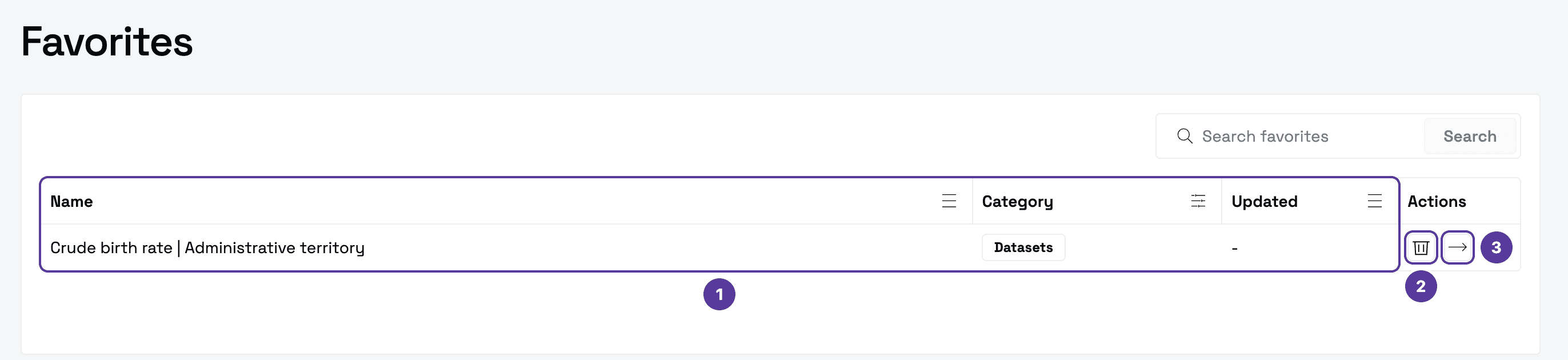
- Name, Category, Updated — sort and filter the list by these columns.
- Remove from favorites — the portal asks you to confirm. Only the entry in your list is removed; the dataset stays on the portal.
- Open — opens the dataset page.
Save a table
A favourite is just a bookmark. A saved table does more: you can keep it in a folder, keep it updated automatically and get an email when the data changes.
Open the table and click "Save"
On a dataset page, in the Table tab, the Save button sits next to Columns and Filters.
Fill in the save form
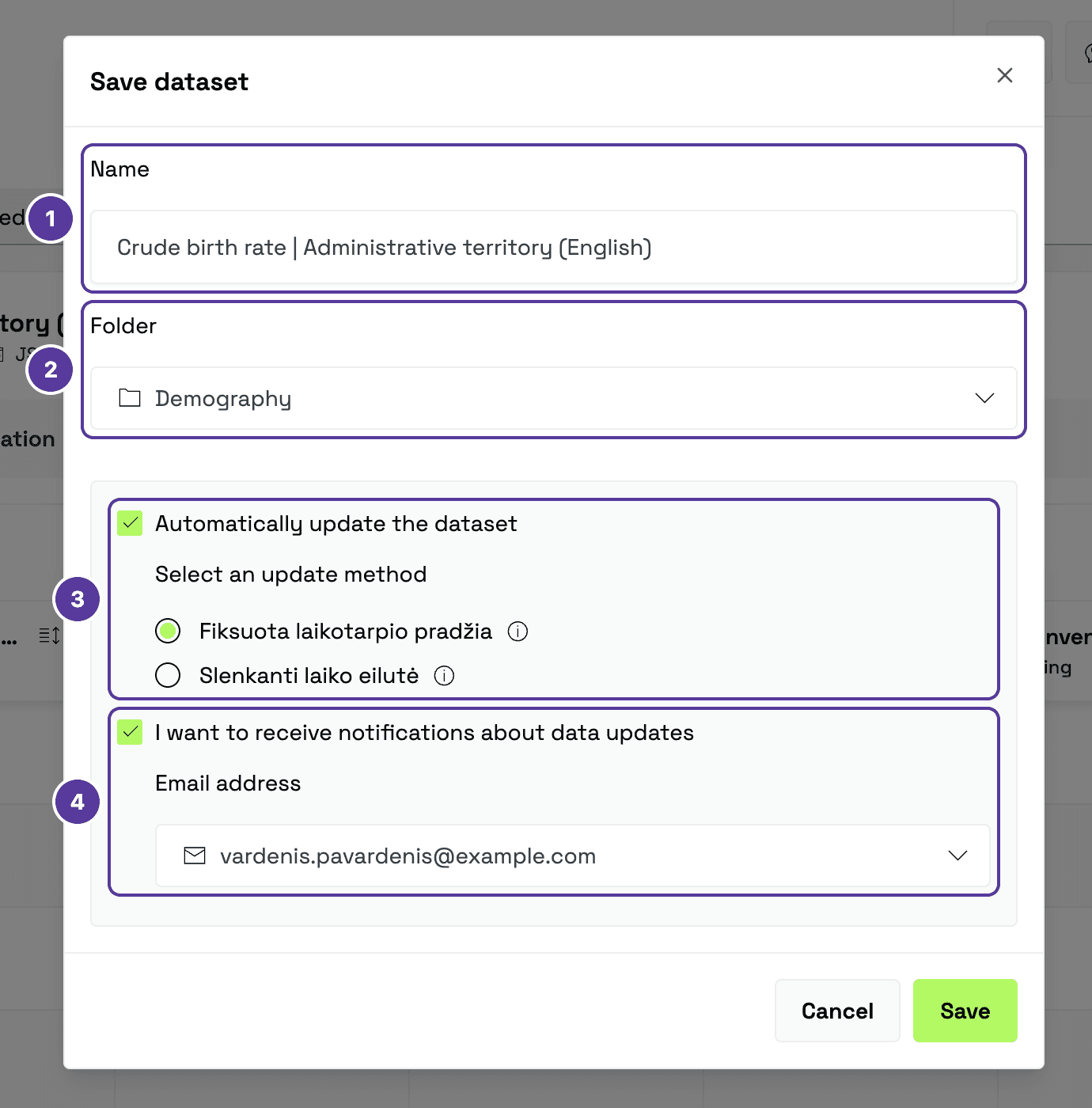
- Name — filled in with the table's name; you can change it.
- Folder — pick an existing folder or create a new one and name it.
- Automatically update the dataset — ticked by default. Choose how it updates (see the table below).
- I want to receive notifications about data updates — ticked by default; choose the Email address. Untick it and no emails are sent.
The two update methods are shown in Lithuanian on the English site as well:
| Update method | What happens | Example: saved with 2020–2024 |
|---|---|---|
| Fiksuota laikotarpio pradžia — fixed start (default) | The start date stays the same; newer data keeps being added from it. | When 2025 data arrives, you see 2020–2025. |
| Slenkanti laiko eilutė — rolling window | The length of the period stays the same; the oldest data is replaced by newer data. | When 2025 data arrives, you see 2021–2025. |
Click "Save"
The portal confirms that the dataset was saved, with a link straight to Saved.
The "Saved" section
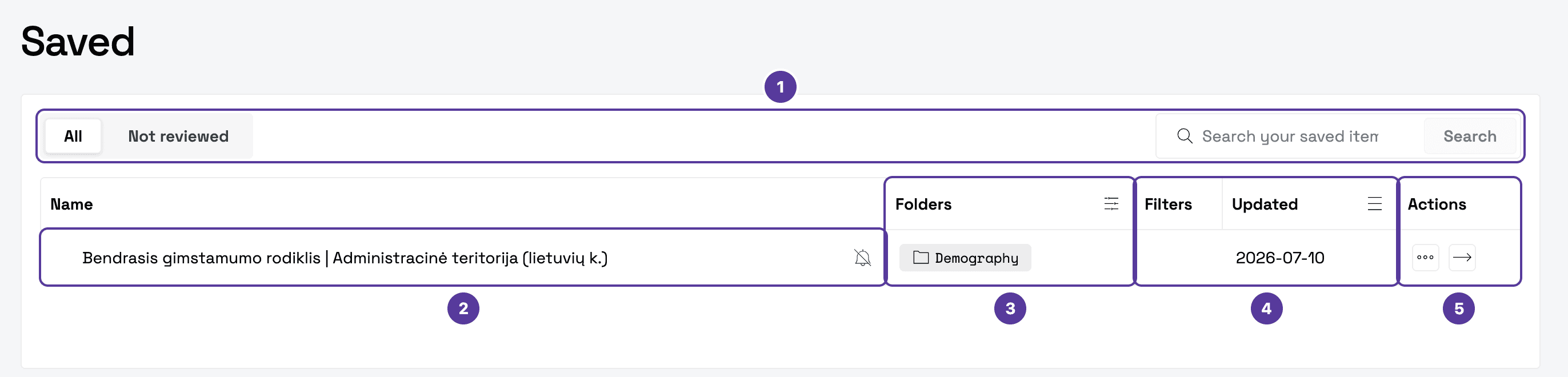
- All and Not reviewed — the list's tabs; plus a search box.
- Name — a crossed-out bell next to it means update notifications are off.
- Folders — sort the list by folder (A–Z, Z–A) or filter it: tick folders and apply.
- Filters and Updated — the table's filters and the date the data was last updated.
- Actions — the ⋯ menu: Turn on subscription (emails about updates) and Remove; the Open arrow opens the dataset.
Before removing an entry, the portal asks you to confirm — Remove saved dataset? Only the entry in your list is removed — the original data stays on the portal.
Tips & tricks
- Want emails about updates? When saving a table, leave I want to receive notifications about data updates ticked. For a table you've already saved, turn them on under Saved: ⋯ → Turn on subscription.
- Folders stay. When you remove the last entry from a folder, the folder is still listed — you can pick it again next time you save.
How is this guide?