Calendar
The publishing schedule for official statistics: how to read an entry, filter the calendar and add a release date to your own calendar.
Last updated on
The Calendar shows when new or updated data will appear on the portal. It covers more than releases of official statistics: open-data updates, classification changes, publications and use cases are all there — several thousand entries in total.
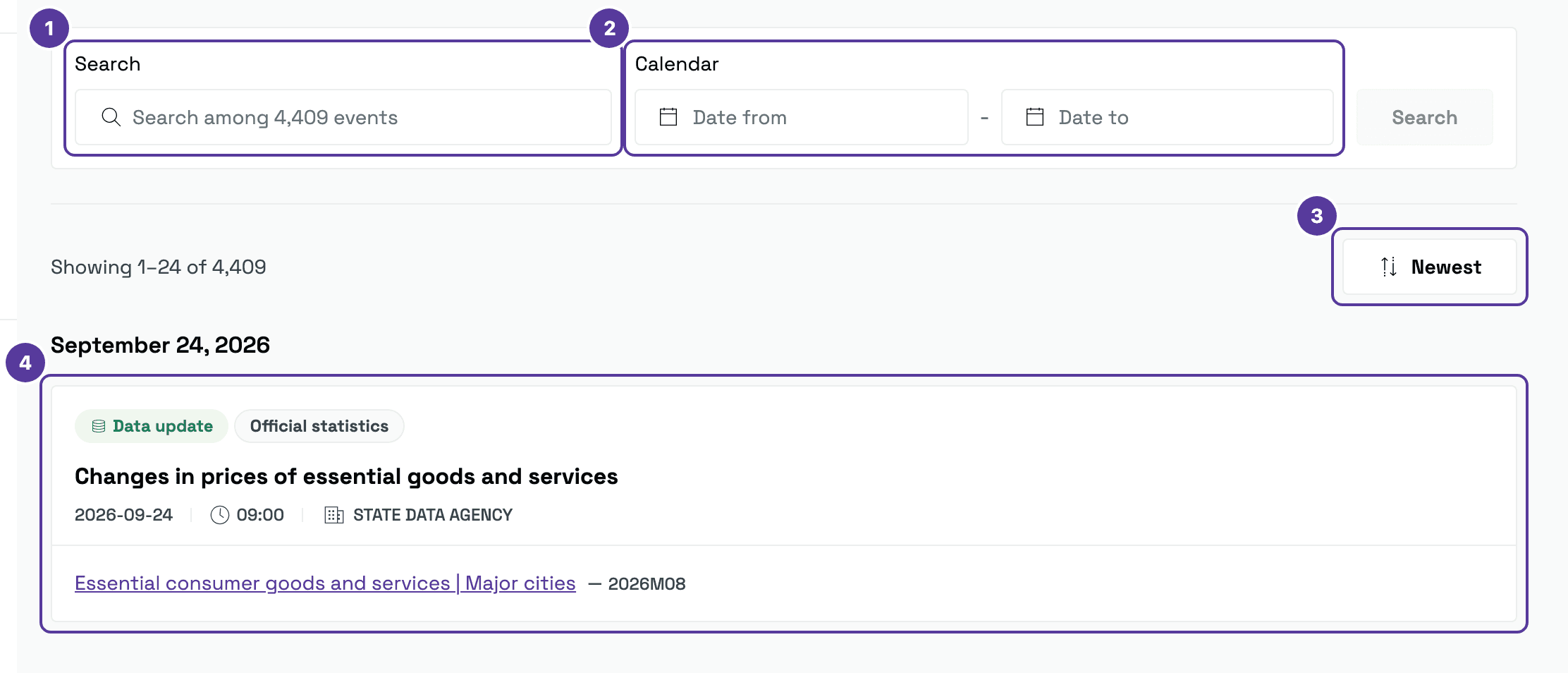
- Search — a word from an indicator or publication name. The placeholder gives the total number of entries.
- Date range — the Date from and Date to fields, applied with Search.
- Sorting — Newest, which reverses the order. To its left, a line shows which part you are seeing ("Showing 1–24 of …").
- An entry — one release. Entries are grouped by day, with a heading (for example, 24 September 2026) separating each date.
The calendar holds both releases that have happened and ones still to come. Entries that have not been published yet carry an orange Not Published tag and a calendar icon.
How to read an entry
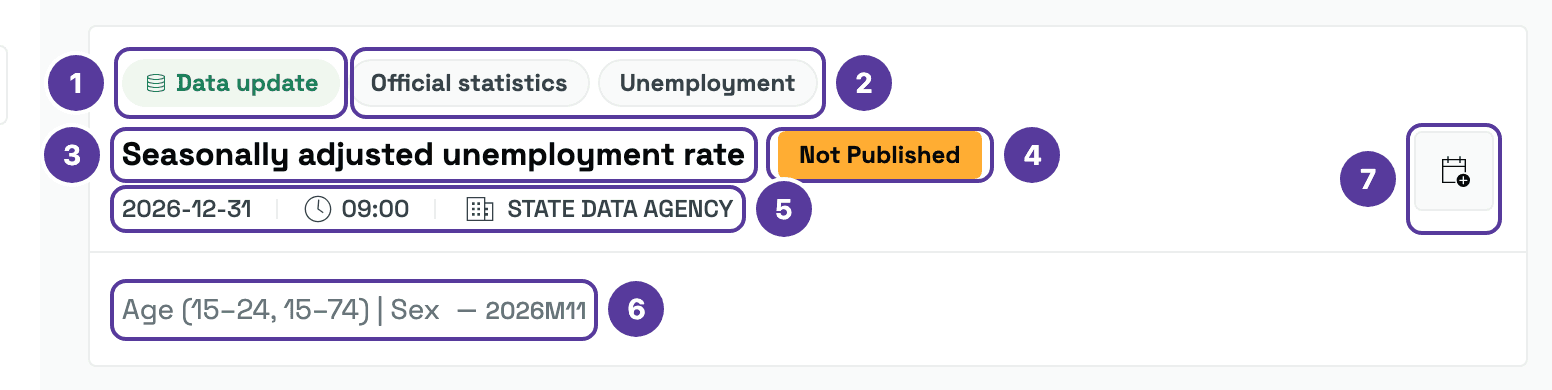
The entry in the picture has not been published yet, so all seven parts are visible.
- Event type tag — what the portal will do that day, for example Data update.
- Publication type tag — what kind of content it will be, for example Official statistics. There may be several tags, including the subject area (Unemployment).
- Title — the name of the indicator or publication.
- The "Not Published" tag — the orange tag means the release time has not arrived yet. Published entries do not carry it.
- Date, time and publisher — the exact day, the hour (usually 09:00) and the institution, most often the State Data Agency.
- Linked breakdown and period — which breakdown of the dataset will be updated (Age | Sex) and for which period (2026M11). On published entries this is a link to the dataset page; there may be several breakdowns.
- Calendar icon — downloads the entry as an
.icsfile. It appears only on entries that have not been published yet.
Put a release date in your own calendar
The calendar icon shows up only next to entries that are still to come — there is nothing to put in a calendar once a release has happened. It downloads an .ics file named after the indicator (for example, butiniausiu-prekiu-ir-paslaugu-kainu-pokyciai.ics). Opening it adds the release date to your calendar application — Outlook, Google Calendar or another — together with a reminder.
The quickest way to find upcoming entries is to put tomorrow's date, or a later one, in Date from and press Search.
Filters
The filter panel has four groups. You can tick several values within a group and combine groups with each other.
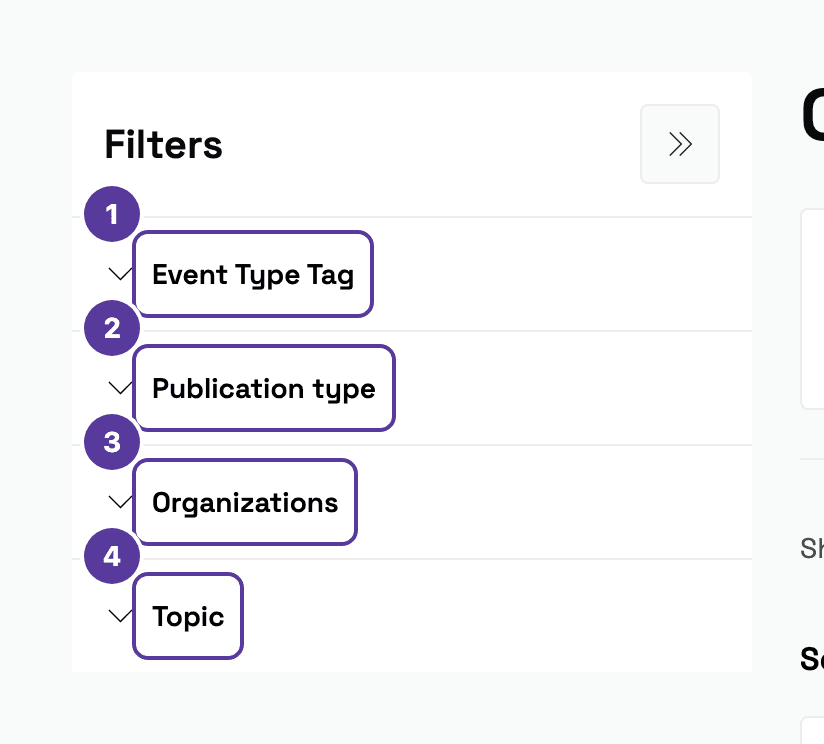
- Event type tag — what the portal will do that day.
- Publication type — what kind of content will be released.
- Organizations — the institution publishing the data.
- Topic — the subject area.
Each group's values are below. The groups are collapsed in the picture so all four fit; on the portal they are open.
Searching a period
Type a word
In the search field, type part of an indicator or publication name.
Set the period
In Date from and Date to, choose a range — the coming month or quarter, for example.
Press Search
The dates apply only once the button is pressed. Tick boxes in the filter panel take effect immediately.
Tips & tricks
- Following one subject area? Tick a Topic and the Data update event type — you then see that area's update schedule alone, without reports and publications.
- Planning work around a release? Open the dataset page from the entry and check which breakdown and period it covers.
- Dates and times are Lithuanian time.
How is this guide?