Downloading and export
Downloading data as JSON, NDJSON, CSV, Parquet or XLSX, and the ready-made API request (cURL or Python).
Last updated on
You can take the data away as a file or fetch it programmatically — both sit behind the green Export button in the data table's header.
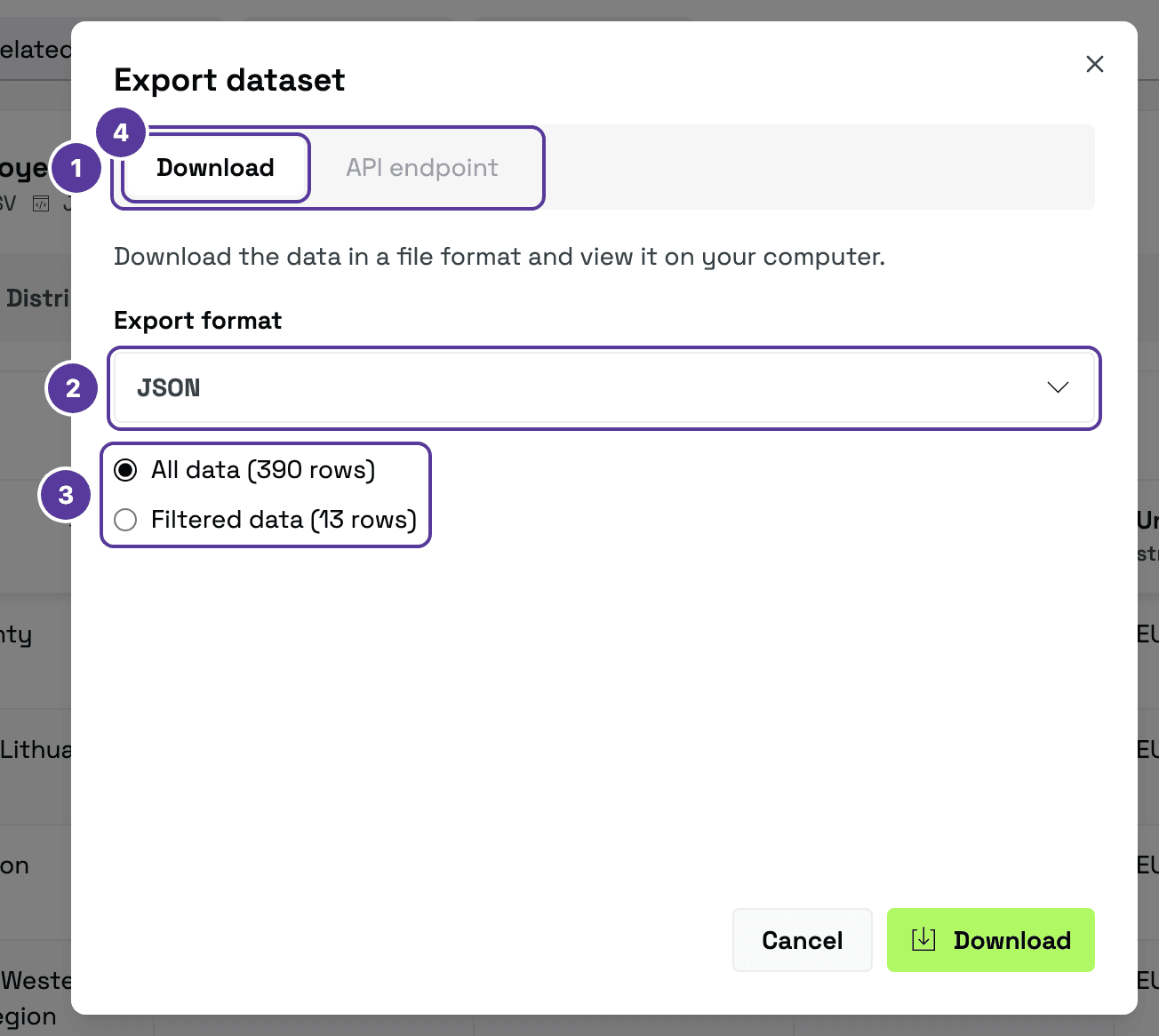
- The Download and API endpoint tabs.
- Export format — JSON is selected to start with.
- Scope — All data or Filtered data; the row count is in brackets.
- The Download button.
Formats
| Format | When to choose it |
|---|---|
| CSV | The most universal. Opens in Excel, LibreOffice, Google Sheets. |
| XLSX | A native Excel workbook — opens straight in Microsoft Excel. Capped at 1,000,000 rows: filter larger tables, or choose CSV or Parquet. |
| JSON | When a program or script will process the data. |
| NDJSON | Newline-delimited JSON — one record per line, handy for streaming or reading large files line by line. |
| Parquet | For large volumes and analysis with Python, R or data tooling. |
JSON is selected to start with. If you want to open the data in a spreadsheet, choose CSV or XLSX.
Downloading a file
Open export
Click Export in the table's header. The Export dataset window opens on the Download tab.
Pick the format
In the Export format list, choose JSON, NDJSON, CSV, Parquet or XLSX (see the table above).
Pick the scope
All data is selected to start with. If you applied filters to the table and want only those rows, select Filtered data — otherwise the file contains every row.
Download
Click Download — the file is saved to your computer.
Fetching it through the API
In the same window, the API endpoint tab shows a ready-made request you can copy and run on your own machine:
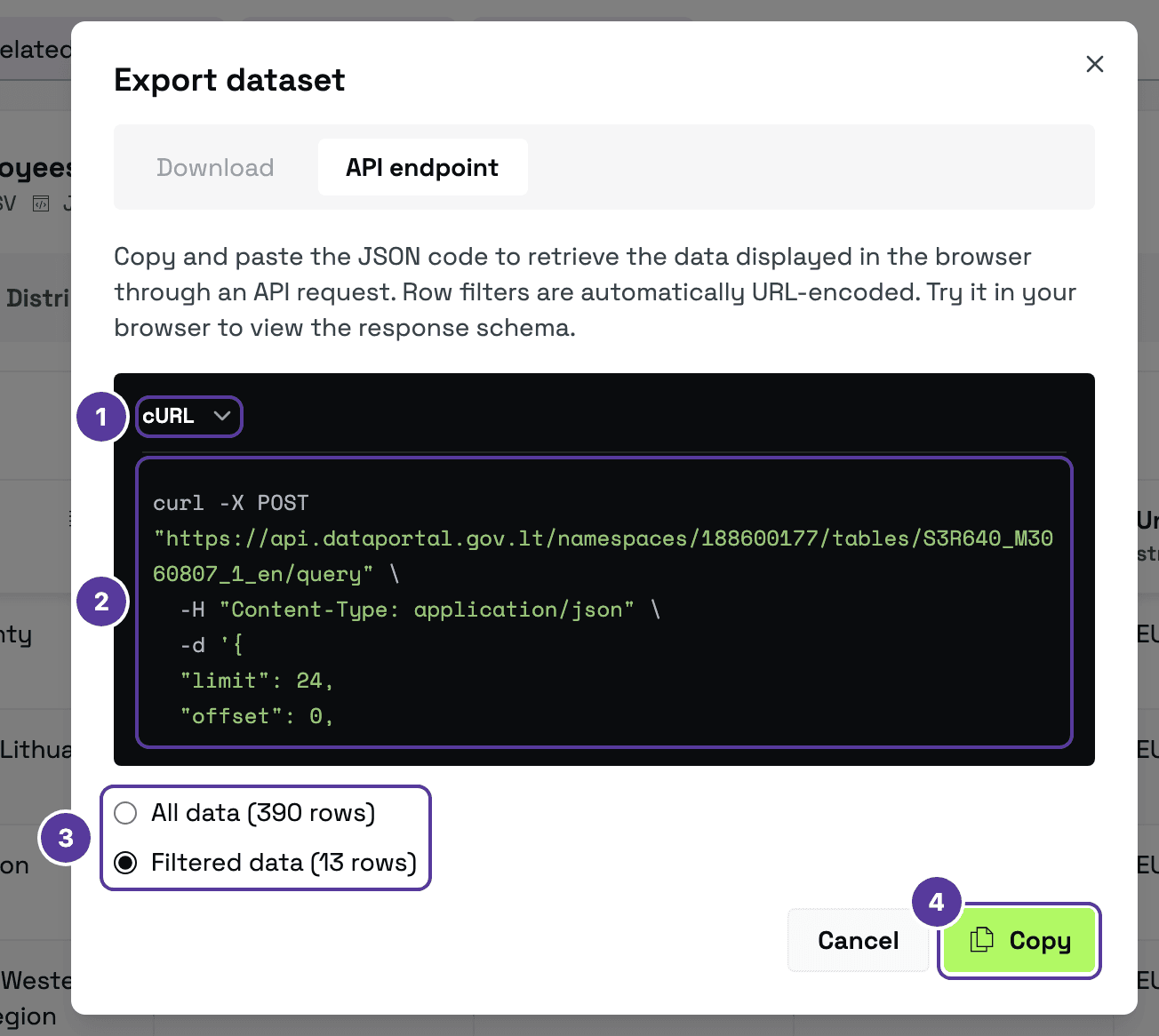
- Language — cURL (for the command line) or Python (with the
requestslibrary). - The request — the address and the request body.
- Scope — with Filtered data selected, the table's filters are written into the request.
- Copy — copies the request.
For example, the request for “Gross earnings (monthly) of employees paid from budgets | Counties” with the table filtered to 2024:
curl -X POST "https://api.dataportal.gov.lt/namespaces/188600177/tables/S3R640_M3060807_1_en/query" \
  -H "Content-Type: application/json" \
  -d '{
  "limit": 24,
  "offset": 0,
  "filter": "time_period._co=2024"
}'-
188600177is the publisher's code andS3R640_M3060807_1_enthe table name (the_enor_ltending sets the language). -
filterholds the table's filters; it appears only with Filtered data selected. It uses the columns' API names, which differ by language:time_periodin the English table,laikotarpisin the Lithuanian one. -
limitandoffsetset how many rows to return and where to start.
The request returns only one page
The ready-made request has "limit": 24 — as many rows as one page of the table. The response's total field gives the full number of rows (13 in this example). To get them all, raise limit (to 1000, say) or send several requests, increasing offset. Without limit, the API returns 100 rows.
The response is JSON: the rows in data (their keys are the columns' API names), plus total, total_pages and current_page.
Tips & tricks
- For regular use, reach for the API. The full set of query options — filtering, sorting, column selection and paging — is covered in the Data API documentation.
How is this guide?