Catalogue and filters
How to browse the data catalogue: themes, search, filters, sorting and the dataset card.
Last updated on
The data catalogue holds every dataset on the portal. There are three ways to reach the one you need — browse by theme, search the catalogue, or filter it — and combining them is usually fastest. To ask a question in plain language and search the whole portal, use smart search.
Browsing by theme
In the Data and statistics menu, open Themes:
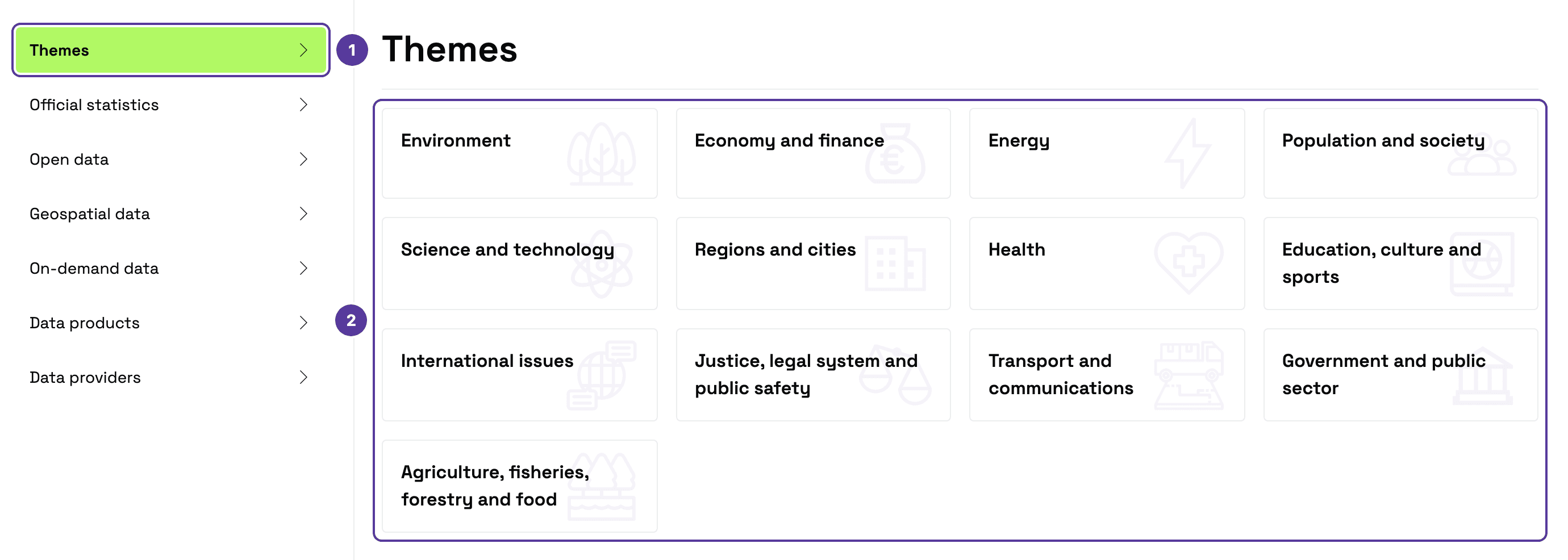
- Themes — the first menu item. The items below it lead to other groups of data, such as Official statistics or Open data.
- 13 themes — from Environment to Agriculture, fisheries, forestry and food. Click a theme to open the catalogue limited to that area.
Search and results
Above the list of datasets are the search, the active filters, the result count and sorting:
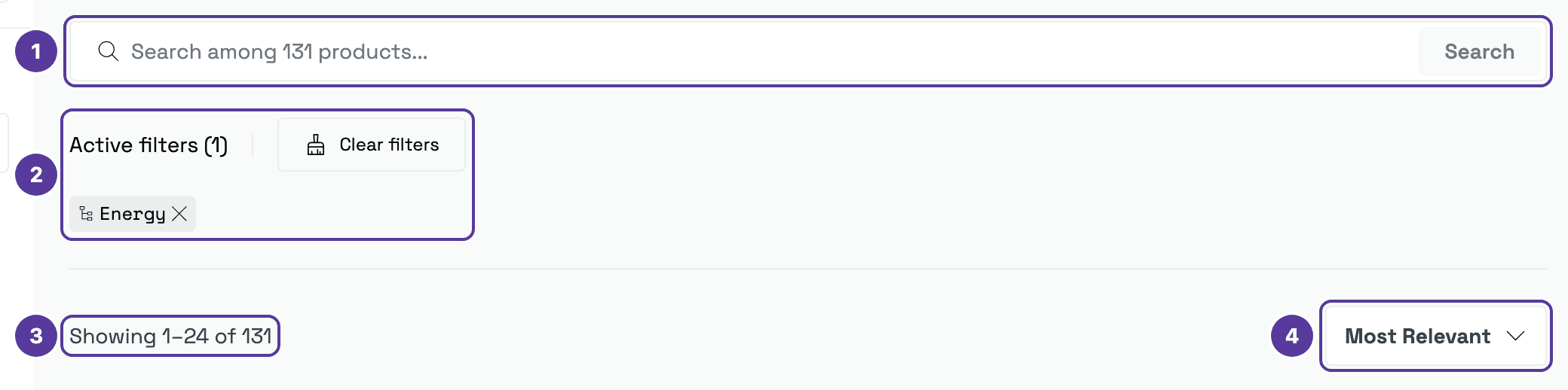
- Catalogue search — searches datasets only, together with the filters you have ticked. The placeholder says how many datasets it will search.
- Active filters — each ticked filter shows as a tag. × removes one; Clear filters removes them all.
- Result count — how many datasets match the search and filters (for example, “Showing 1–24 of 131”).
- Sorting — Most Relevant, Newest, Oldest, Title A-z or Title Z-a.
Filters
The catalogue has a filter panel on the left with six groups. In the image they are numbered in the same order as on the portal and below:
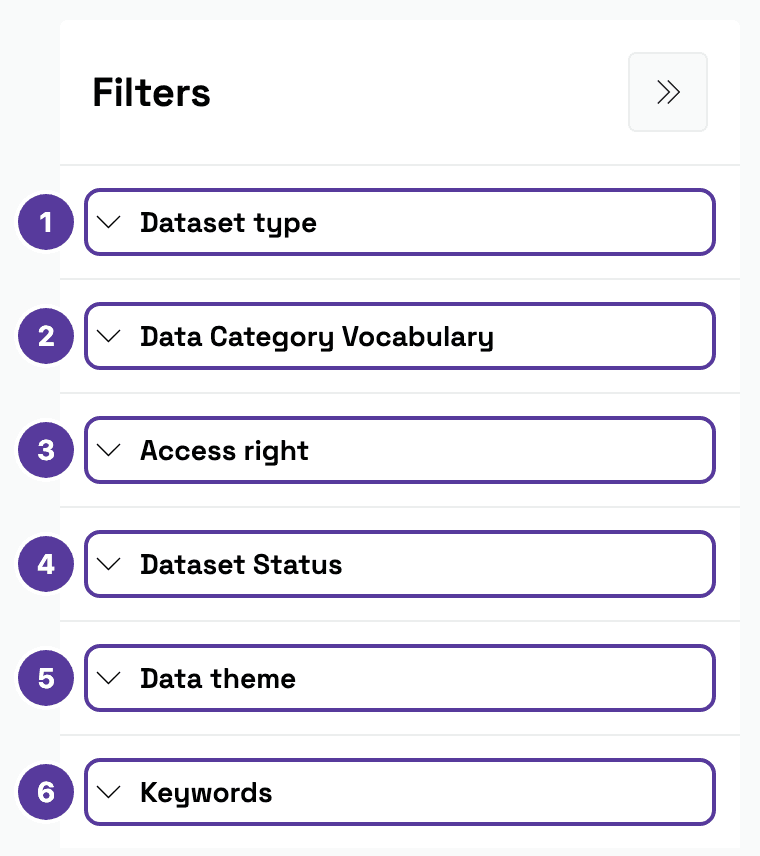
Filters from different groups combine: ticking the Energy theme and the Official statistics category returns only datasets matching both. Your choices — and your search — are stored in the address, so a filtered view can be bookmarked or sent to a colleague.
Official statistics adds the “Completed” status
When you tick the Official statistics category, the portal also ticks the Completed status — you will see it under Active filters. If you want discontinued datasets too, remove that tag.
The dataset card
Each result in the catalogue is a card with the key facts:
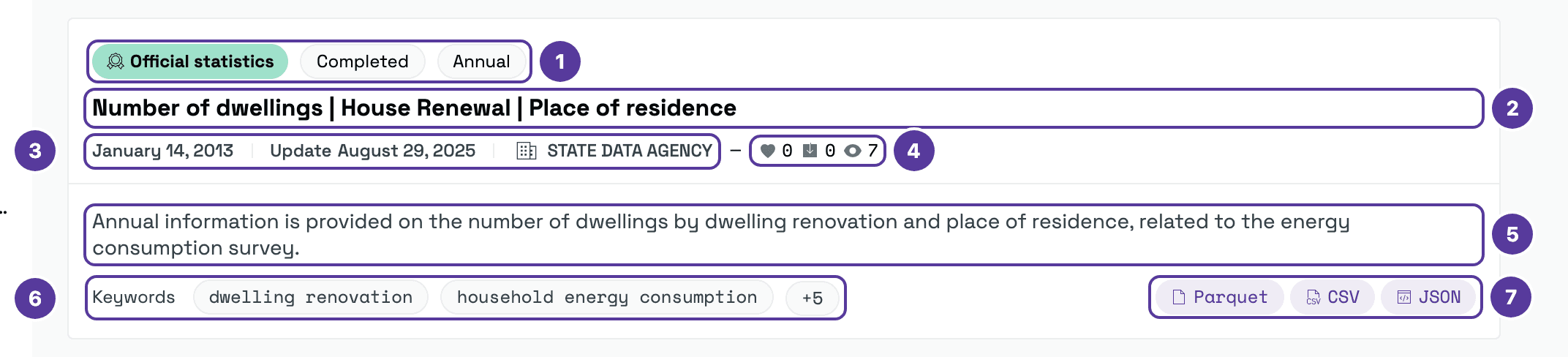
- Category, status and update frequency — for example, Official statistics, Completed, Annual.
- Title — first the indicator, then the breakdowns after “|”.
- Publication and update dates, and the publisher.
- Likes, downloads and views.
- A short description.
- Keywords — “+5” means five more.
- Download formats.
Found a good one? Click its title to open the dataset page.
Tips & tricks
- Combine search with filters. Tick a theme and a category, then type a word — the search runs only over the datasets you narrowed down to.
- Looking for the latest data? Sort by Newest.
- Not sure where to start? Ask smart search a question — it searches the whole portal, not just the catalogue.
How is this guide?